
FAQs
Signing in
- How do I sign in?
-
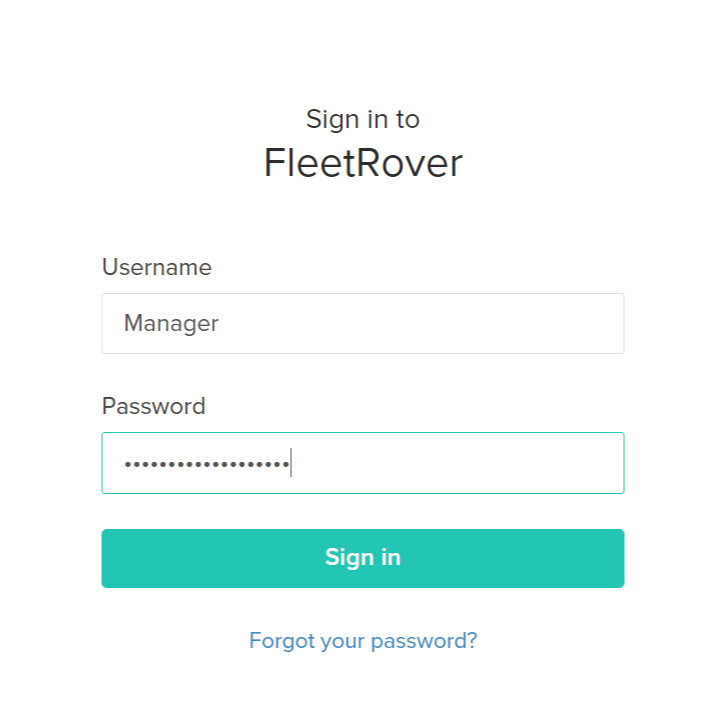
You can log in to the site by going to the link provided to you and entering your assigned username and password. If you can’t find the link, check your email and try searching your Inbox and Spam folder for “A FleetOps account has been made for you!”
- I forgot my username and password. What should I do?
- If you’ve forgotten your username and password, click “Forgot Password” on the login page and enter your email ID. Then you’ll receive the username and password for your account via the email ID that you registered with FleetRover.
- Why is the system telling me my password is invalid?
- Try checking if your Caps Lock is ON/OFF.
- What will I see when I sign in?
- You’ll be directed to the Dashboard consisting of the map, the Asset List, Navigation Bar and Notification Panel. By default, you’ll be able to see all the assets assigned to you and the points of interest (POIs) created on the map and Asset List.
- Where is the Sign out option?
-
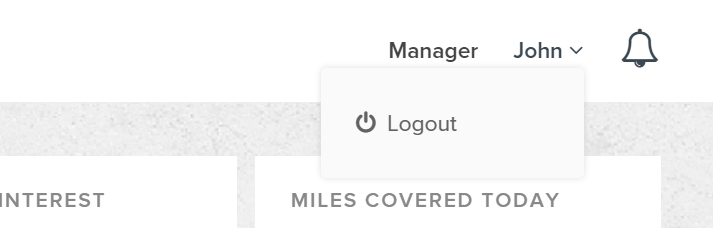
You can find the Sign out option by selecting the username on the top right-hand corner of the screen.
Features
- What are tags?
- Tags are identifications that can be assigned to an asset or POI. This helps with categorising an asset or POI into a particular tag. By entering a particular tag in the search, you can view all the assets or POIs that are tagged under that name. The tags are not predefined, so you can create new tags on the fly.
- What are notifications?
- Notifications are alerts that are generated if an asset triggers any conditions allotted to them, such as truck overspeeding (above 105 km/h), truck entering a POI location, truck leaving a POI location, etc.
- What information can I see in the truck window?
-

Selecting an asset on the map will allow you to view a lot of important information.
Data are displayed directly, such as Truck Name, Truck Current Location, Truck Current Speed, Truck Model, Truck License Number, Driver Name, Last Update Time and Last Alert Triggered.
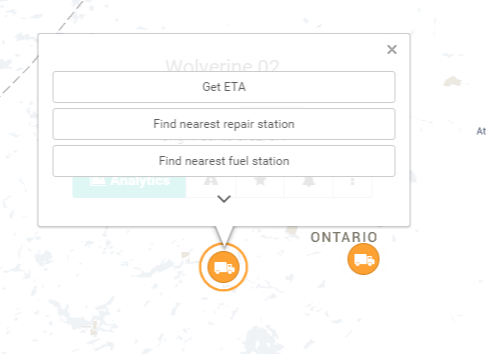
You can access data at the click of a button, such as See Trail (Breadcrumbs), Get ETA, Nearest Fuel Station, Nearest Repair Station, the setting of a New Alert and Truck Analytics.
- What is “See Trail”?
- See Trail will let you see the Truck Trail or Breadcrumbs over the last two hours.
- What is “Get ETA”?
-
This tells you the approximate time the truck will take to reach a particular location. Just type the location for which you want to calculate the ETA.
- What is “Nearest Fuel Station”?
- This displays the name of, and distance to, the fuel stations closest to the truck’s current location.
- What is “Nearest Repair Station”?
- This displays the name of, and distance to, the repair stations closest to the truck’s current location.
- What is “Set New Alert”?
- This allows you to set the alert conditions for which you want to be notified if one is triggered for the current session. In other words, if you reload the page, the alert condition settings will be lost. For permanent settings, set the alerts on the Asset Settings page.
- What are audits?
- Audits basically provide you with a report of the changes made to the selected asset or POI and the user who made the changes.
- What can I view on the POI Analytics page?
-
The POI Analytics page displays assets present in the selected POI at the current time. You can also view assets that are at a distance of 10 miles, 25 miles and 50 miles.
You can also view the assets and the duration for which they were in the POI for a selected time range. This time range can be selected from the date picker.
- What information can I see in the POI/Landmark window?
- You can view the number of trucks and trailers in the landmark. You can also calculate the trucks nearest to the landmark. This will display a list of truck names and their distance from the landmark.
- What are the options available for sending a message to a driver?
- Apart from the normal messaging service, you can send additional requests, such as New load pickup, New load dropoff, New trailer pickup, New trailer dropoff and New route.
- What reports are available on FleetRover?
-
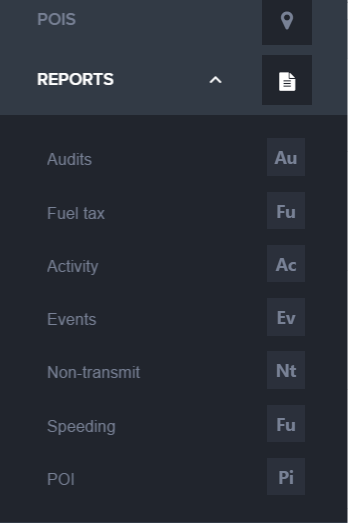
Many reports are available, and they are all easily accessible from the Navigation Menu:
- Activity Report - Showing all starts, stops and locations
- Event Report - Showing all actions associated with an asset
- Not Transmit Report - Displaying all assets that have not reported in, and the last time each asset reported in
- Point of Interest Report - Showing the POIs that an asset interacted with
- Trip Replay Report - An output of Trip Replay in Excel format
- Speeding Report - All speeding events for a particular asset or many assets
- Who Was There Report - All asset entries and departures for a specific POI
- Alarm Report - All alarms associated with an asset
- Temperature Report - All temperature violations for a particular asset
- Trailer Report - All trailer connections by time, in descending order
Interface
- What is the device ID?
- The device ID is the specific ID given to the BlueRover (BR) hardware device installed in your fleet. Each BR device has a unique device ID which helps track the location of your asset on the map.
- What is the truck name?
- This is the unique name given to your truck.
- How do I view assets that are currently in Alert State?
-
Select the Alerts tab on the Search bar.
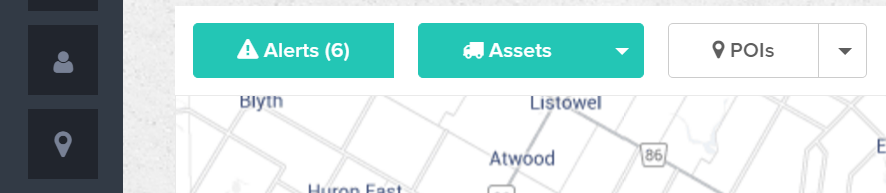
- What do the numbers beside the filters “All” and “Alerts” represent?
- These numbers represent how many assets and POIs are currently displayed on the map and Asset List for each of the above filters.
- How can I filter my assets?
-
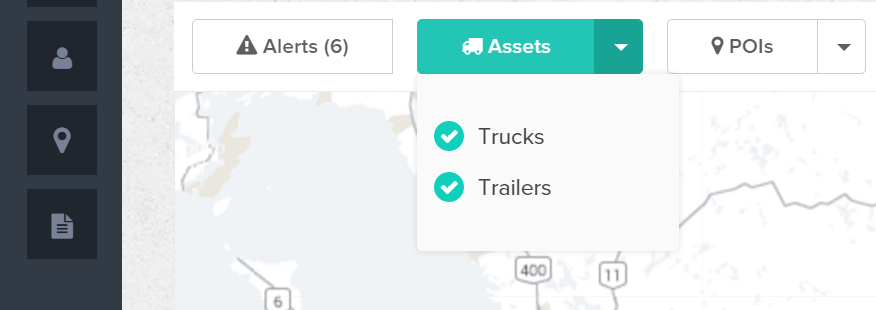
You can filter your assets by selecting the Assets tab and disabling or enabling the assets you want to view on the map or Asset List.
- How are POIs categorised?
-
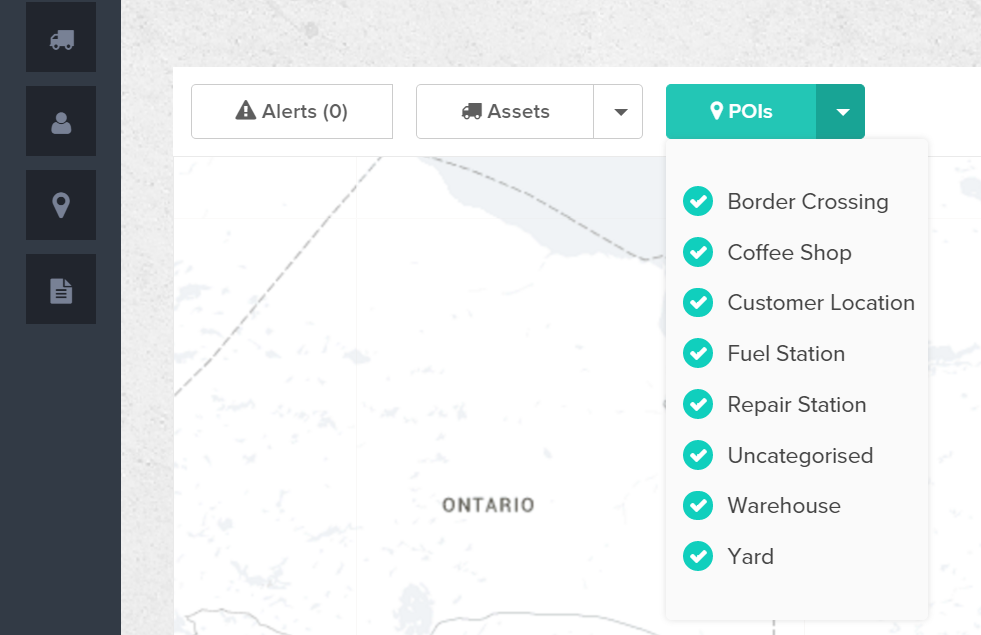
The POIs are categorised into Border Crossing, Coffee Shop, Customer Location, Fuel Station, Repair Station, Uncategorised, Warehouse and Yard.
- How can I filter my POIs?
- You can filter your POIs by selecting the Assets tab and disabling or enabling the assets you want to view on the map or Asset List.
- Is there a way that I can select or deselect all Assets and POIs?
-
Yes, you can select or deselect all Assets by selecting the “Assets” tab in the filters. If the tab is highlighted as green then all the Assets are selected and if it’s white then all Assets are unchecked. Same thing applies to POI’s. In the above screenshot all the Assets are selected while the POI’s are deselected.

- How can I create a POI?
-
You can create a POI by selecting the “Draw a Shape” icon on the map and then drawing the location on the map.
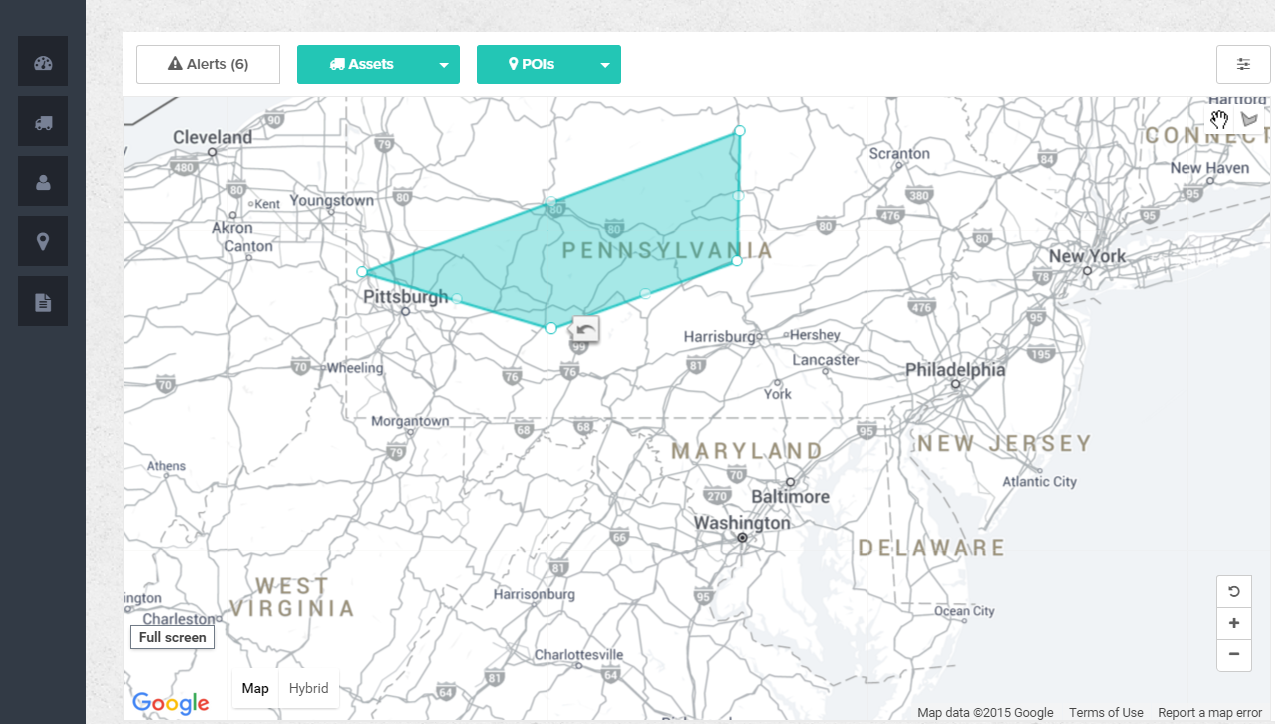
Then a pop-up will appear asking you to enter the details of the POI.
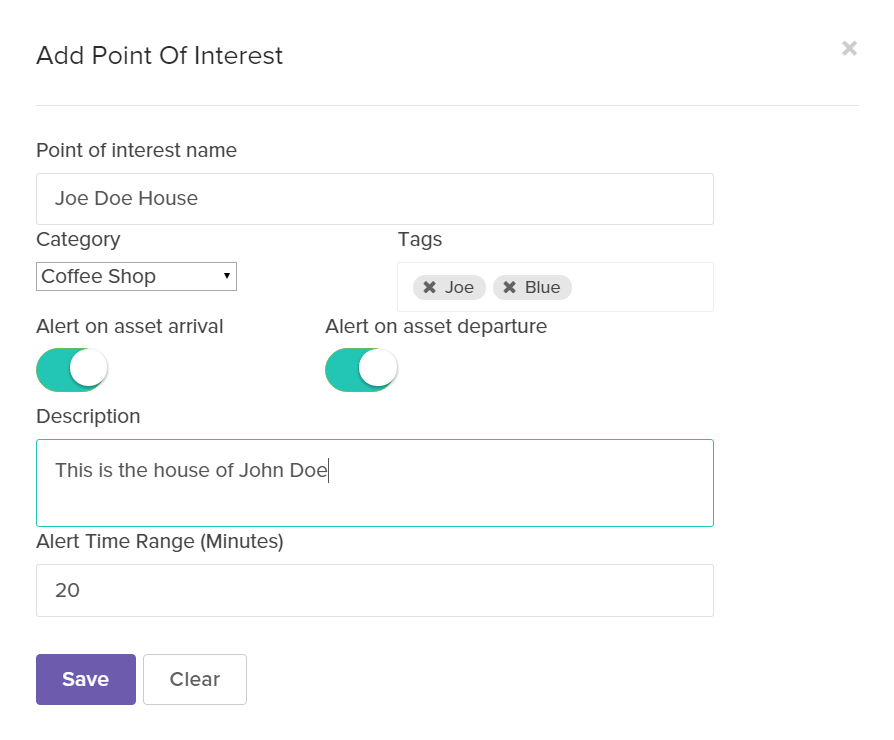
The other method for creating a POI is to go to the POI List page and select “Add POI” on the top right-hand corner.
- How do I navigate between different screens?
-
You can navigate to different screens using the Navigation Menu. You can access this menu by hovering over the Navigation bar on the left-hand side of your screen and selecting the page you want to go to.

- What pages can I navigate to from the Navigation Menu?
- You can navigate to Dashboard, Assets, POI, Drivers, Activity and Reports. On selecting Reports, you can view a further breakdown of the reports that are available.
- How do I view the list of all my assets?
- You can view all your assets either on the Dashboard or on the Asset List page. The Asset List page can be accessed by hovering over the Navigation Menu and selecting “Assets.”
- How do I view the list of all my POIs?
- You can view all your POIs either on the Dashboard or on the POI List page. You can access the POI List by hovering over the Navigation Menu and selecting “POI.”
- How do I view the list of all my drivers?
- You can view all your drivers either on the Dashboard or on the Driver List page. You can access the Driver List page by hovering over the Navigation Menu and selecting “Drivers.”
- How do I access the Notification panel?
- You can access the Notification panel by selecting the Notification icon on the top right-hand side of the screen. To close the Notification bar, either click the icon again or click the “Close” button.
- How can I view all the alerts triggered?
- Your alerts are displayed in the Notification panel. You can view all the latest alerts there. To see older alerts, just click the “Load More” button at the end of the Notification panel.
- How do I view my Asset Breadcrumbs on the Dashboard?
- You can view your Asset Breadcrumbs for the last two hours by either clicking the asset on the map and selecting “See Trail” from the pop-up or by selecting the “See Trail” option from the Asset List.
- How do I view the Asset Analytics page from the Dashboard?
- You can view your Asset Analytics by either clicking the asset on the map and selecting “View Analytics” or by selecting the “View Analytics” option on the Asset List. Either option will direct you to the Asset Detail page.
- How can I edit the details for my truck or trailer?
-
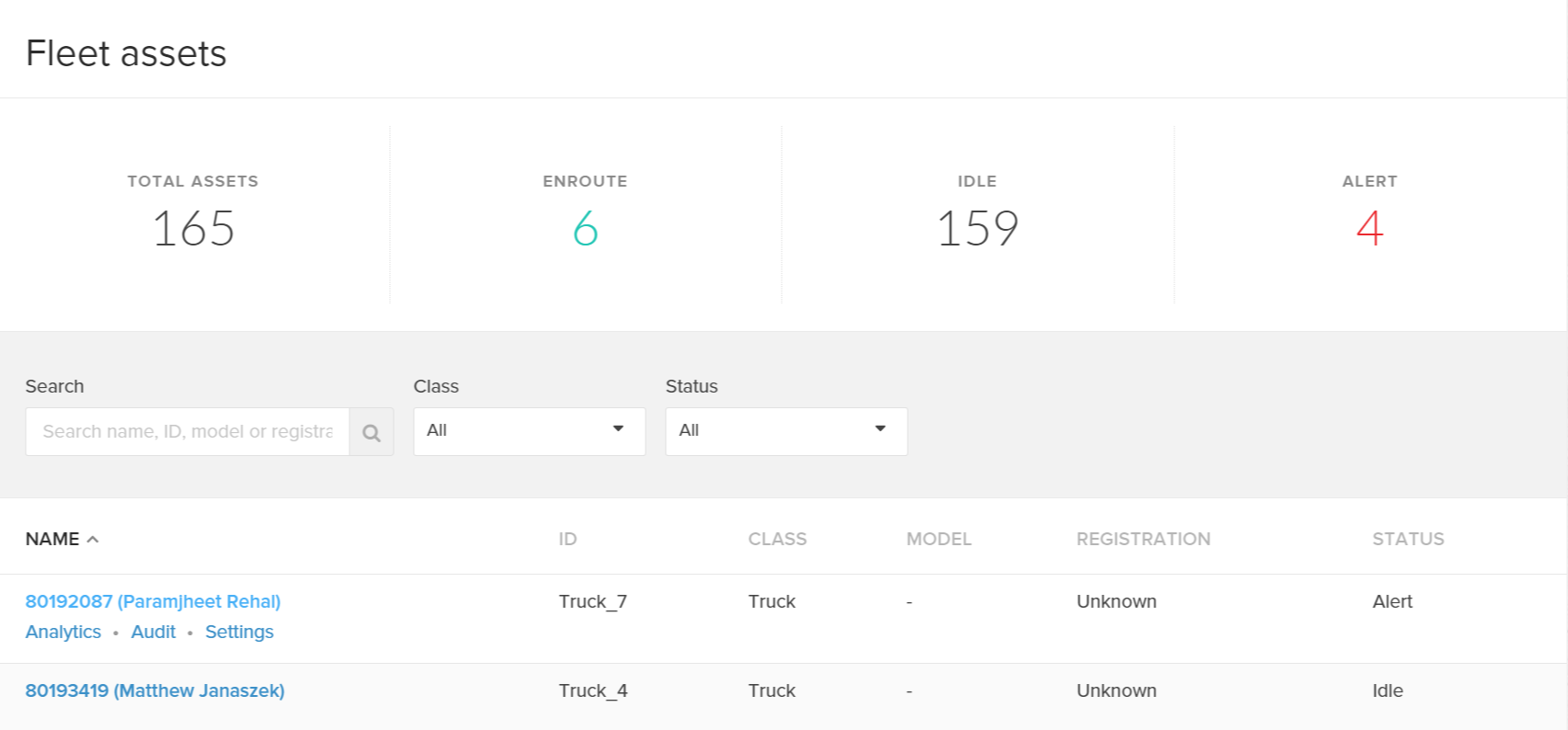
Hover over the Navigation bar and select “Assets.” This will open the Asset List. Now, hover over the asset you want to edit, and three options will be visible: Analytics, Audits and Settings. Select “Settings” to view the editable details.
- How do I edit the alerts for a particular asset?
- You can set the alerts for a particular asset by going to the Asset Settings page from the Asset List and enabling or setting the conditions for which you want an alert to be triggered. You can also directly set alerts for a particular asset on the Dashboard by selecting the asset on the map and selecting the “Alerts” option in the pop-up. Then another pop-up displaying the alert conditions will appear. NOTE: Alerts set via the Dashboard method are only applicable for the current session; if the page is reloaded, the alert setting will be lost. You can set permanent alert settings via the Asset Setting page.
- How can I view the trip replay?
- You can access the Trip Replay screen by selecting “Analytics” from either the asset on the map or from the Asset List on the Dashboard. On the Analytics page, by default, you will see the trip replay of the last two hours.
- How do I use the trip replay?
-
By default, you will be able to see the trip replay of the last two hours. To change the duration, select the start and end dates from the date picker located just below the Menu bar.
The trip replay for a particular duration consists of different trips within itself. You can select the trip of your choice from the “Current Trip” menu to view the in-depth details of the truck location at that point of time. Each trip shows the breadcrumbs on the map for that asset, for that particular trip. Each breadcrumb location on the map and list is generated every two minutes, as the assets transmit data to the server every two minutes. On selecting a breadcrumb from a trip, you will be able to see the in-depth details of the truck for that breadcrumb point, such as the truck speed, the location name and the truck’s location on the map at that point of time.
- How do I view the POI Analytics page from the Dashboard?
-
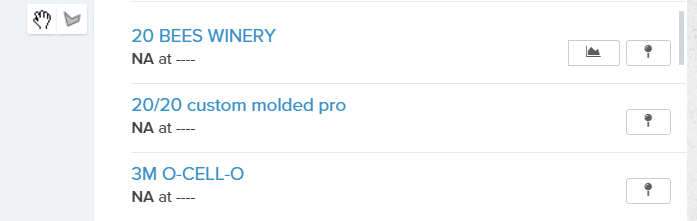
You can view your POI details by selecting the “View Analytics” option on the Asset List. This will direct you to the Asset Detail page.
- How do I add a new POI?
-
Click the “Add POI” button on the POI List page. Then you will see a pop-up and a map on which you can draw the geofence and enter the details of that POI.

- How can I edit the details of my POIs?
- Hover over the Navigation bar and select “POI.” This will open the POI List. Now, hover over the POI you want to edit, and three options will display: Analytics, Audits and Settings. Select “Settings” to view the editable details.
- How do I edit the alerts for a particular POI?
- The alerts for a particular POI can be set by going to the POI Settings page from the POI List and enabling or setting the conditions for which you want an alert to be triggered.
- How can I edit the details of my drivers?
- Hover over the Navigation bar and select “Drivers.” This will open the Driver List. Now, hover over the driver you want to edit, and three options will be visible: Analytics, Settings and Quick Message. Select “Settings” to view the editable details.
- How do I add a new driver?
-
To add a new driver, go to the Driver List page from the Navigation Menu and click the “Add driver” button on the top right-hand side of the screen.

Other
- Why can't I see my trucks?
- There can be different reasons for this:
The page might not have loaded properly due to a poor Internet connection. Try reloading the page.
The account owner may not have assigned you trucks. Try contacting the account owner. - Why do I have so many alerts?
- lerts are generated according to the alert triggers set for each asset and geofence. So, every time an alert condition is triggered, an alert is generated. The alerts can include overspeeding, a truck entering or leaving a marked geofence, a truck in a particular geofence for longer than a set duration, etc. You can re-configure your settings to receive more or fewer alerts.
- Why isn't my truck reporting?
- Your truck may be turned off! Please take a look at your Non Transmit Report by accessing Reports > Non Transmit Report. If more than 24 hours have passed since the device in question last reported in, please contact your support team.
- What do these icons mean?
- There are three main types of assets on the FleetRover system. They are classified as Truck, Trailer and TT. The assets are further classified according to their state. Normal State Alert State (e.g. If a truck is overspeeding) Alert Dismissed State Apart from these icons, you can set different icon colours for your assets (Normal State only). You can select the colour from the Settings section for the particular asset.
- Why hasn’t my POI been created?
- This is probably because your newly created POI is overlapping an existing one that was created in the same location. Look in the area where you are trying to create the POI to see if one already exists. If it does, try to draw your new POI around it.